Understanding advanced molecular simulation
CH-420
Setup your Computational Environment
Page content
Overview
In the course, you will need to modify and run some simple Python scripts and plot the output. The Python scripts are Jupiter notebook format i.e., .ipynb. Therefore, Anaconda / Miniconda(light version)/ Mamba (C++ version) is required to construct your Python virtual environment. In this environment, you need to install the molsim python package (i.e., molsim-source-solutions.zip). Because the molsim package is based on C++ language, you need to use the "apt install" command to install some packages on your computers. You can follow the tutorial (i.e., Installation.pdf) to set up your computer. After you finish the setup, you can run "test.ipynb" to check everything is fine. All files mentioned here can be found below.
For window user
If you use a Windows computer, you need to install WSL on your computer, which can create a Linux environment. In this environment, you can follow the Linux part in the tutorial to install everything.
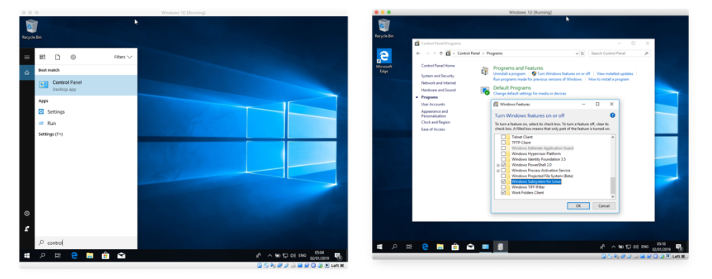
- Go to "Control Panel"
- Navigate to "Program and Features"
- Click on "Turn Windows features on or off"
- Select "Windows Subsytem for Linux"
- Restart your computer
- (For older versions) If needed, turn on "Developer Mode": Start menu -> Settings -> search for "developer settings" -> Turn on "Developer Mode".
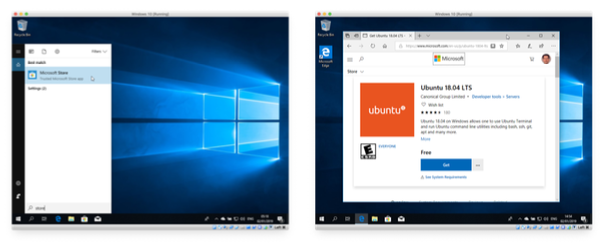
- Go to "Microsoft Store"
- Go to "Apps"
- Search for "Ubuntu 20.04.5 LTS"
- Select "Get"
- Download Ubuntu18.04 (apx format) from https://learn.microsoft.com/en-us/windows/wsl/install-manual
- Rename the file from .apx to .zip and unzip the file
- Open the powershell with administrator rights and execute the ubuntu18.exe file
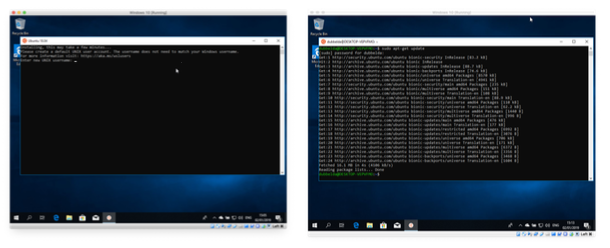
- Type the account name and password for your linux system
Step 3. Create a Linux account
Step 4. Follow the tutorial for Linux.
Visual Studio Code
VSCode is a lightweight but powerful source code editor that is available for Windows, macOS, and Linux. We recommend you use it to run the notebooks. We attach an introduction to VS code.